> ## Documentation Index
> Fetch the complete documentation index at: https://docs.prefect.io/llms.txt
> Use this file to discover all available pages before exploring further.
# Measure reliability with Service Level Agreements
> Define the performance expectations for your flows and to enable automated alerts when those expectations are not met.
Experimental: This feature is experimental and may change in the future.
## Prerequisites
* Prefect Client Version 3.1.12 or later
* Prefect Cloud account (SLAs are only available in Prefect Cloud)
* (If using Terraform) [Prefect Terraform Provider](https://registry.terraform.io/providers/PrefectHQ/prefect/latest/docs) version 2.22.0 or later
## Service Level Agreements
Service Level Agreements (SLAs) help you set and monitor performance standards for your data stack. By establishing specific thresholds for flow runs on your Deployments, you can automatically detect when your system isn't meeting expectations.
When you set up an SLA, you define specific performance criteria - such as a maximum runtime of 10 minutes for a flow. If a flow run exceeds this threshold, the system generates an alert event. You can then use these events to trigger automated responses, whether that's sending notifications to your team or initiating other corrective actions through automations.
## Defining SLAs
To define an SLA you can add it to the deployment through a `prefect.yaml` file, a `.deploy` method, or the CLI:
```yaml prefect.yaml SLA theme={null}
deployments:
my-deployment:
sla:
- name: "time-to-completion"
duration: 10
severity: "high"
- name: "lateness"
within: 600
severity: "high"
```
```python .deploy SLA theme={null}
from prefect import flow
from prefect._experimental.sla.objects import TimeToCompletionSla, LatenessSla, FrequencySla
@flow
def my_flow():
pass
flow.from_source(
source=source,
entrypoint="my_file.py:my_flow",
).deploy(
name="my-deployment",
work_pool_name="my_pool",
_sla=[
TimeToCompletionSla(name="my-time-to-completion-sla", duration=30, severity="high"),
LatenessSla(name="my-lateness-sla", within=timedelta(minutes=10), severity="high"),
FrequencySla(name="my-frequency-sla", stale_after=timedelta(hours=1), severity="high"),
]
)
```
```bash CLI SLA theme={null}
prefect deploy --sla '{"name": "my-time-to-completion-sla", "duration": 10, "severity": "high"}'
```
```hcl Terraform Provider theme={null}
provider "prefect" {}
resource "prefect_flow" "my_flow" {
name = "my-flow"
}
resource "prefect_deployment" "my_deployment" {
name = "my-deployment"
flow_id = prefect_flow.my_flow.id
}
resource "prefect_resource_sla" "slas" {
resource_id = "prefect.deployment.${prefect_deployment.my_deployment.id}"
slas = [
{
name = "my-time-to-completion-sla"
severity = "high"
duration = 30
},
{
name = "my-lateness-sla"
severity = "high"
within = 600
},
{
name = "my-frequency-sla"
severity = "high"
stale_after = 3600
}
]
}
```
## Types of SLAs
### Time to Completion SLA
A Time to Completion SLA describes how long flow runs should take and the severity of going over that duration.
The SLA is triggered when a flow run takes longer than the specified duration to complete.
The Time to Completion SLA requires one unique parameter:
* `duration`: The maximum allowed duration in seconds before the SLA is violated
This SLA is useful for monitoring long-running flows and ensuring they complete within an expected timeframe.
For example, if you set a Time to Completion SLA on your deployment with a `duration` of 600 seconds (10 minutes) the backend will emit an `prefect.sla.violation` event if a flow run does not complete within that timeframe.
### Frequency SLA
A Frequency SLA describes the interval a deployment should run at and the severity of missing that interval.
The Frequency SLA requires one unique parameter:
* `stale_after`: The maximum allowed time between flow runs (e.g. `1 hour` for hourly jobs)
For example, if you have a deployment that should run every hour, you can set up a Frequency SLA with a `stale_after` of 1 hour.
This SLA triggers when more than an hour passes between `Completed` flow runs.
### Lateness SLA
A Lateness SLA describes the severity of a flow run failing to start at its scheduled time.
The Lateness SLA requires one unique parameter:
* `within`: The amount of startup time allotted to a flow run before the SLA is violated.
For example, if a deployment is scheduled to run every day at 10am, and has a Lateness SLA of 5 minutes, the backend will emit an SLA violation event if a flow run does not start by 10:05am.
## Monitoring SLAs
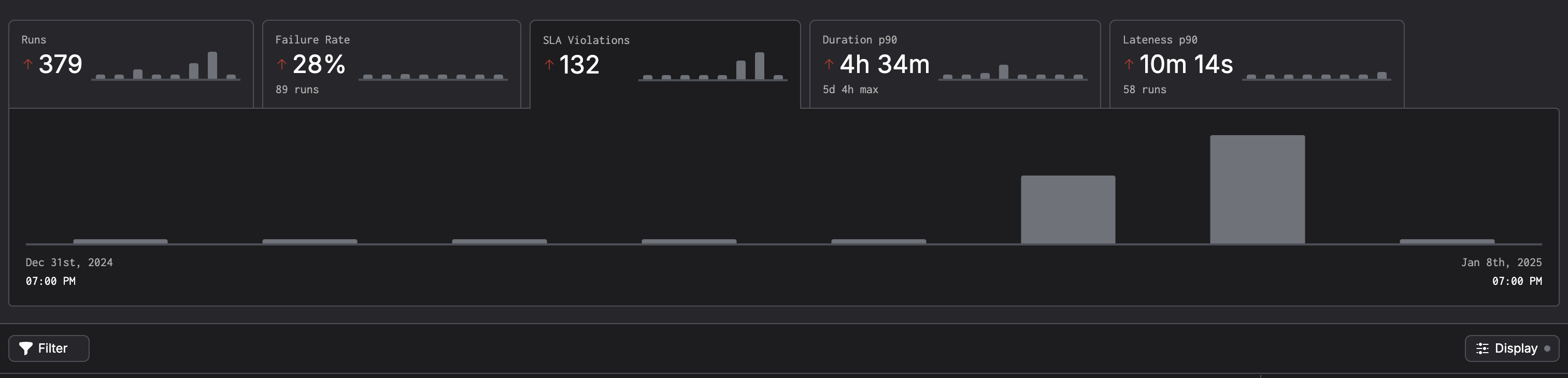
You can monitor SLAs in the Prefect Cloud UI. On the runs page you can see the SLA status in the top level metrics:
 ## Setting up an automation
To set up an automation to notify a team or to take other actions when an SLA is triggered, you can use the [automations](/v3/automate/events/automations-triggers/) feature. To create the automation first you'll need to create a trigger.
1. Choose trigger type 'Custom'.
2. Choose any event matching: `prefect.sla.violation`
3. For "From the Following Resources" choose: `prefect.flow-run.*`
## Setting up an automation
To set up an automation to notify a team or to take other actions when an SLA is triggered, you can use the [automations](/v3/automate/events/automations-triggers/) feature. To create the automation first you'll need to create a trigger.
1. Choose trigger type 'Custom'.
2. Choose any event matching: `prefect.sla.violation`
3. For "From the Following Resources" choose: `prefect.flow-run.*`
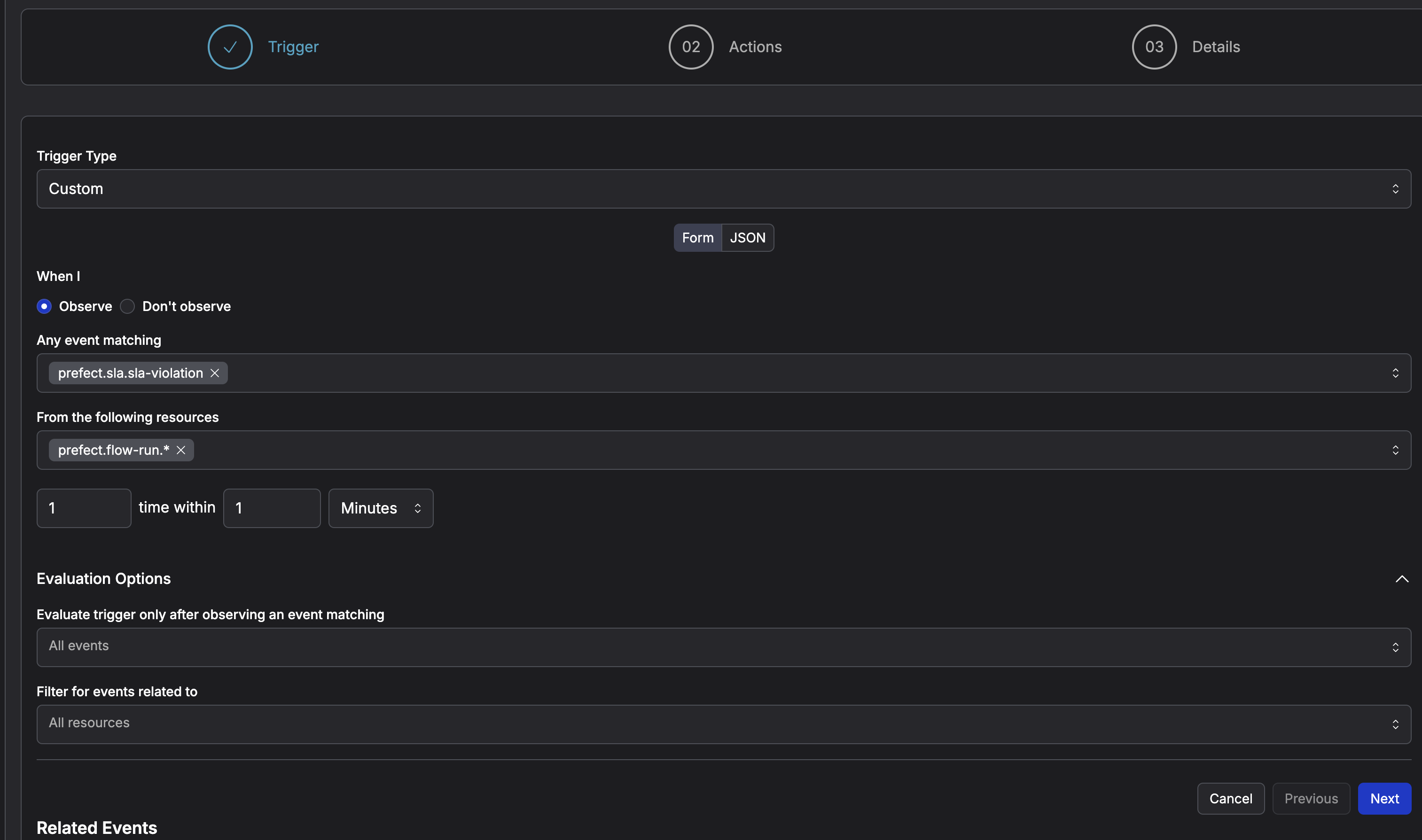 After creating the trigger, you can create an automation to notify a team or to take other actions when an SLA is triggered using [automations](/v3/automate/events/automations-triggers/).